PNG to JPG
Free PNG to JPG Converter Online
Shrink heavy .png screenshots and photos into fast, universal .jpg files right in your browser. Choose JPEG quality, set a clean fill color for transparency, and batch up to 30 images privately.
- 100% free, 0 credits
- Quality & white fill controls
- Batch 30 files in browser
- Files stay on your device
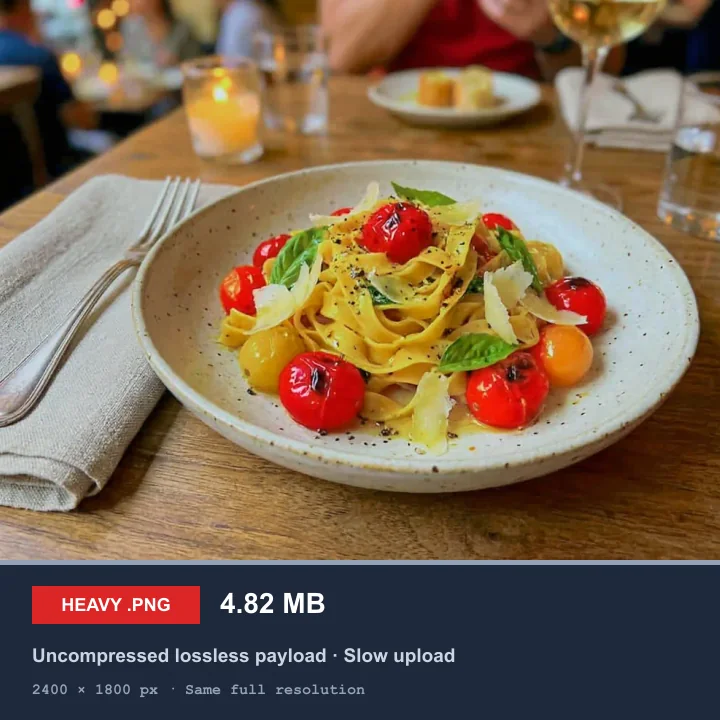
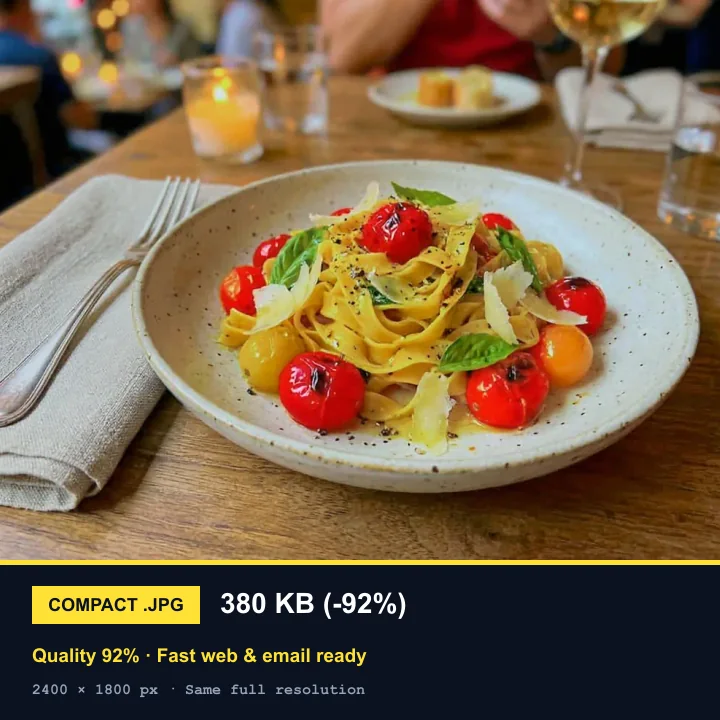
Drop PNG files here
or click to browse — paste with Ctrl+V · up to 30 files at once
Supports .png, .webp, .bmp, .gif · 100% local in your browser · 0 credits
Choose PNG Files100% private — converted locally in your browser. Files never leave your device.
Why teams switch from PNG to JPG before publishing
Smart local encoding cuts bloated multi-megabyte PNG screenshots and studio exports by up to 90% while letting you control JPEG quality and transparent background fill color.
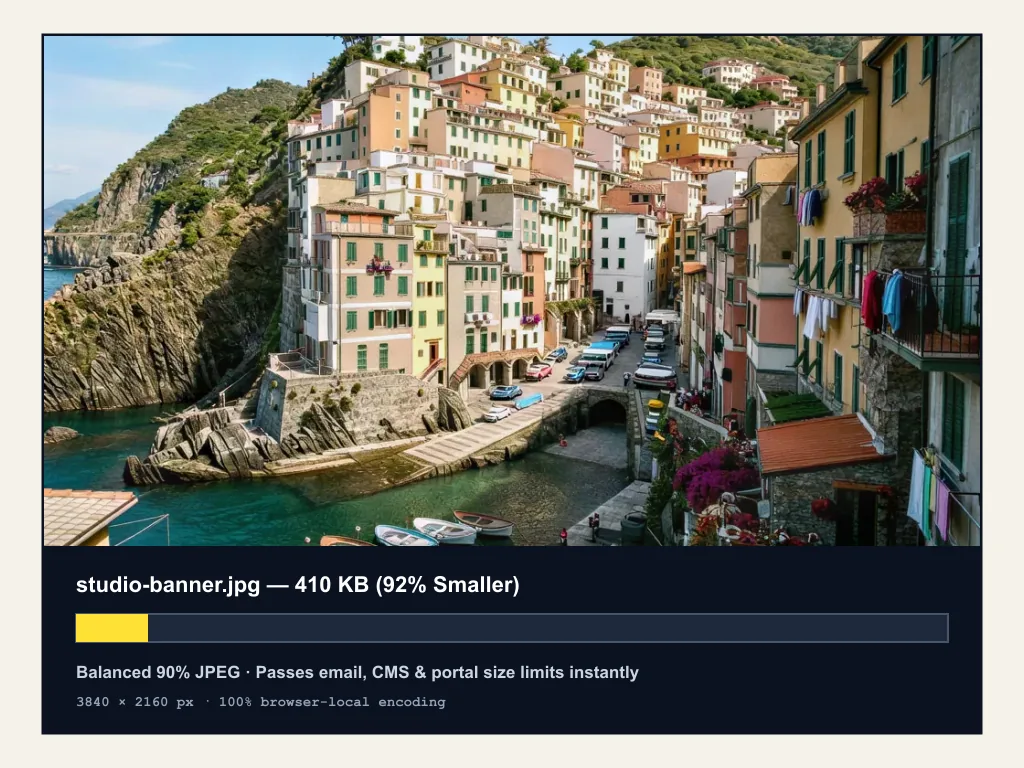
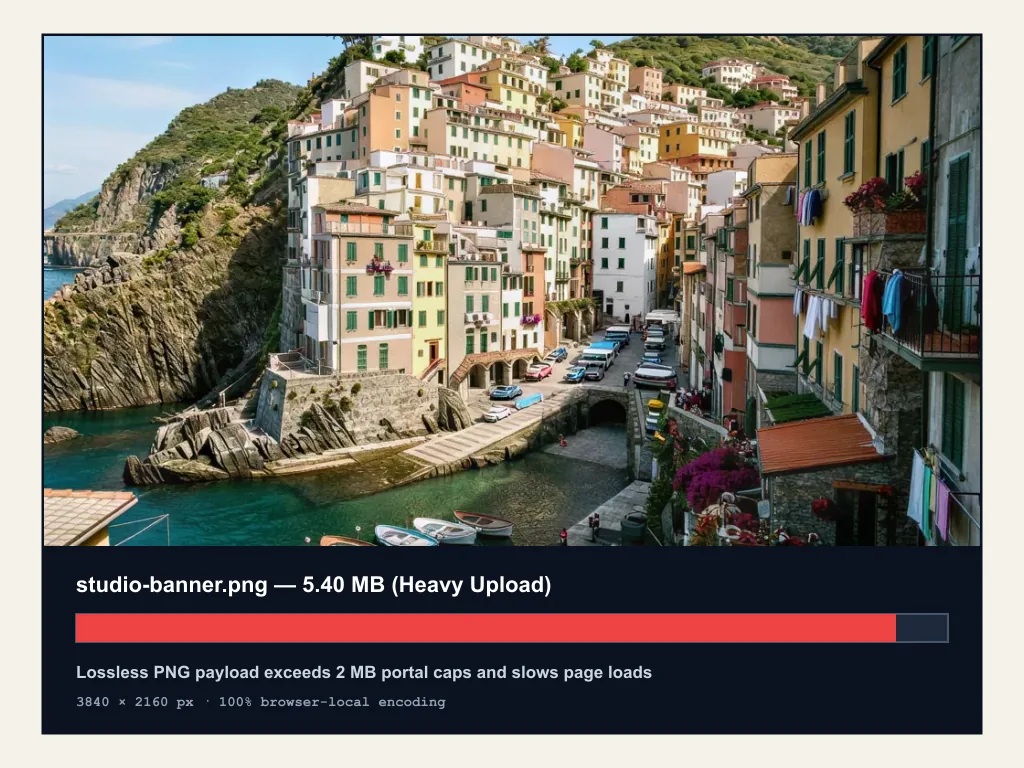
Shrink multi-megabyte screenshots and photos by up to 90%
Full-screen macOS captures and exported design frames easily swell past 5 MB as lossless PNG. Saving them as balanced 90% JPEG cuts payload weight dramatically without visible softness.
- Adjustable 60%–100% quality slider with live output size readouts
- Keeps exact original pixel dimensions while slashing transfer weight
- Passes strict email attachment, CMS, and job-portal file size caps
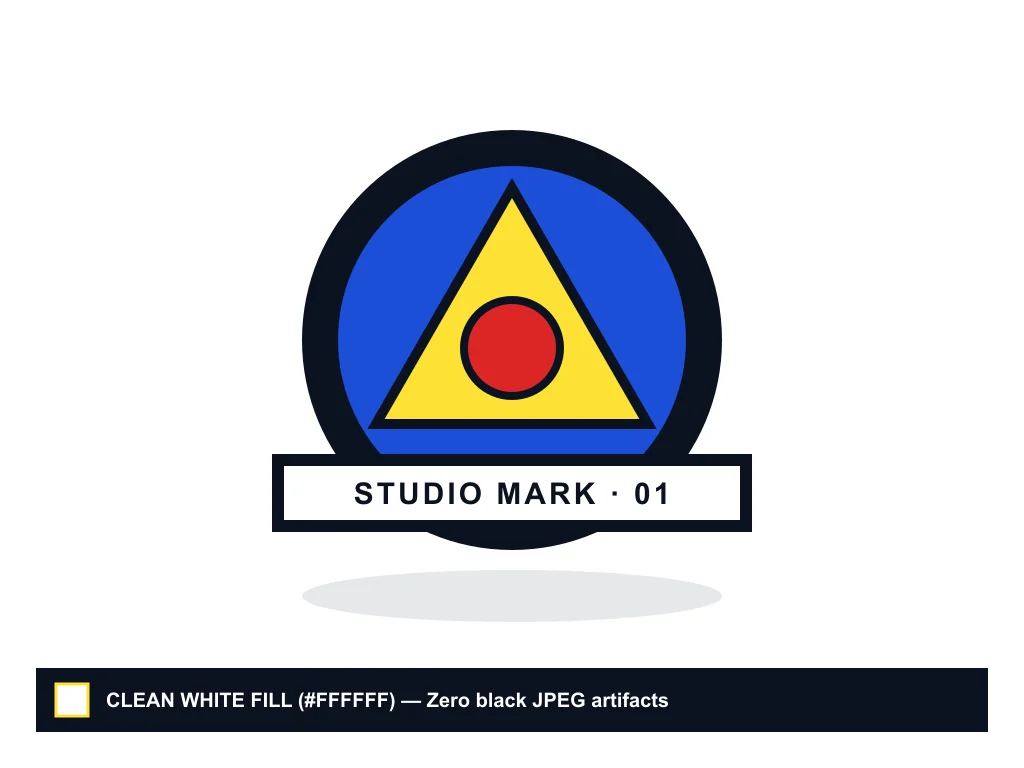
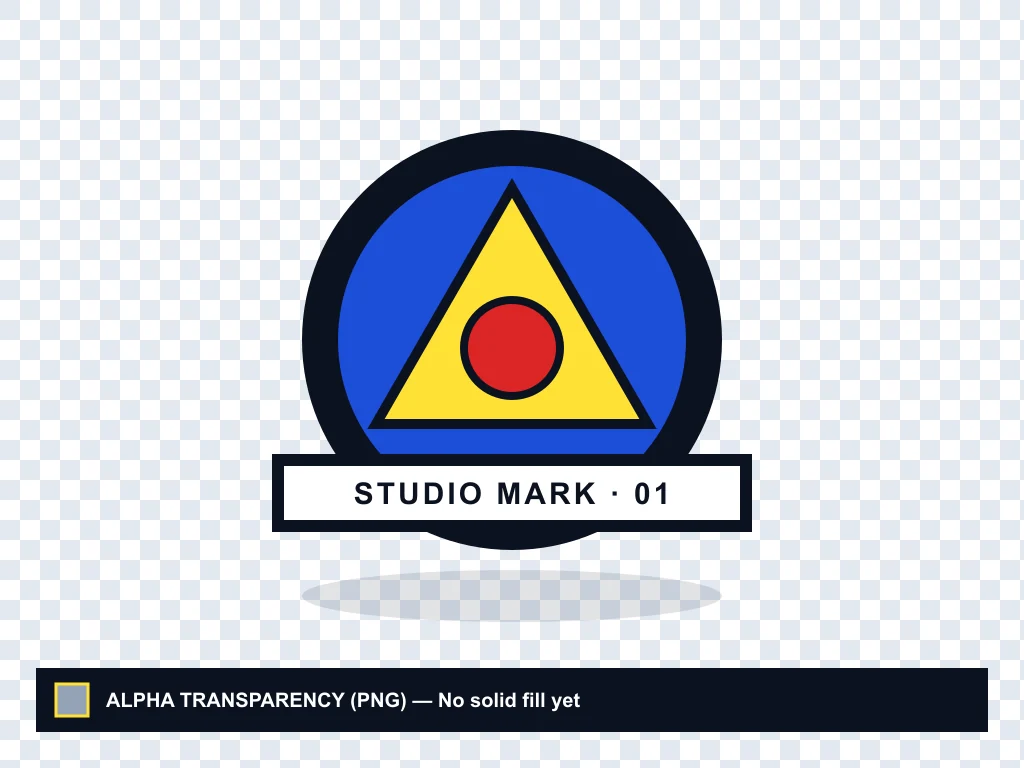
Flatten transparent PNG cutouts onto clean white or custom colors
Standard JPEG files cannot hold an alpha channel, so naive utilities often turn transparent regions solid black. Pick white, light gray, dark charcoal, or any custom hex fill before exporting.
- Pure white #FFFFFF background default for Amazon and Shopify listings
- One-click background color switcher re-encodes your queue instantly
- Prevents harsh black halos around transparent product logos and stickers
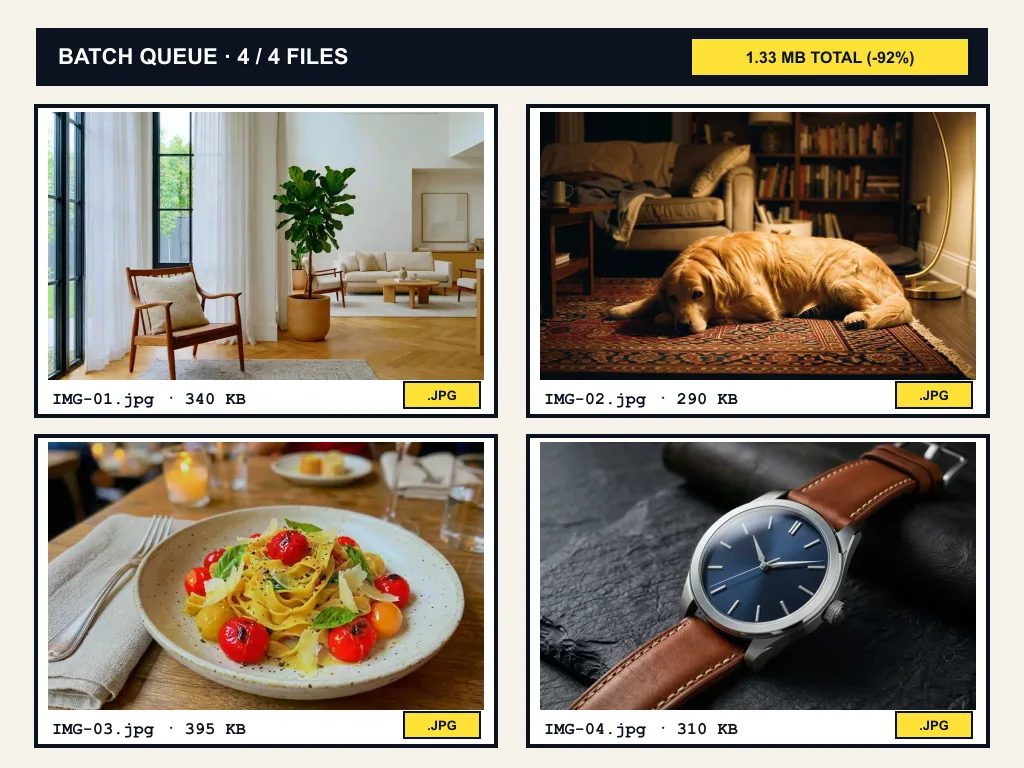
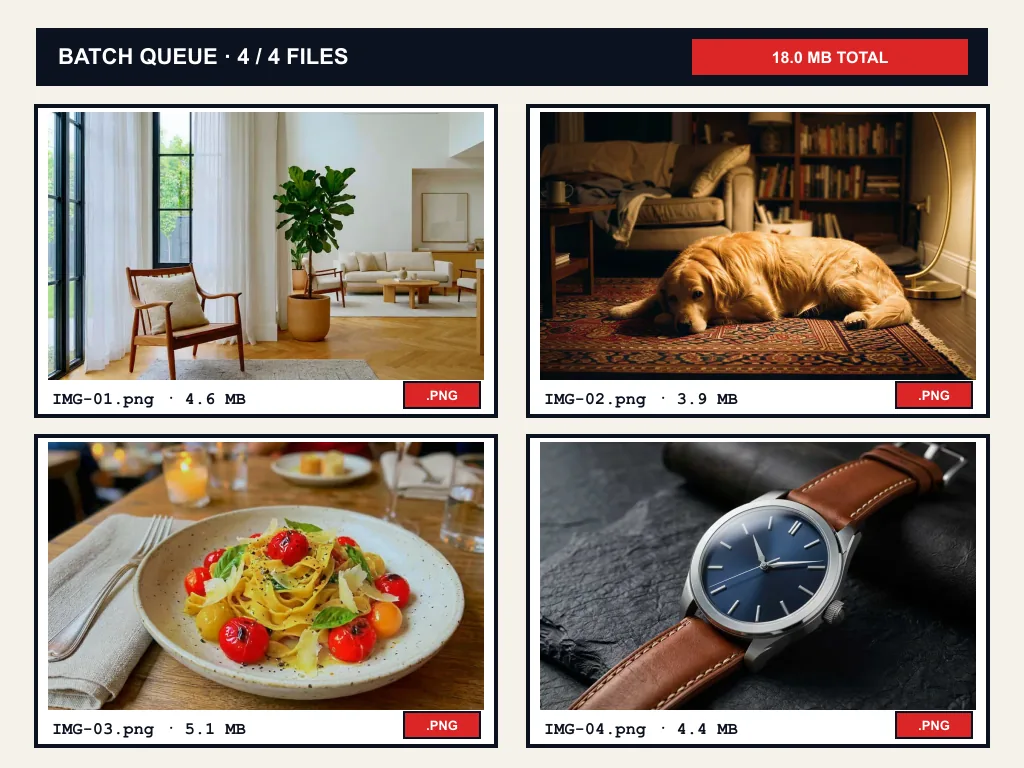
Batch convert up to 30 PNG files in a single drop
Stop opening screenshots one by one in desktop preview apps. Queue up to 30 images locally to see exact kilobyte savings per file and download every converted JPEG together.
- Supports .png, .webp, .bmp, and .gif inputs in one mixed queue
- Shows original size, new JPG size, and percentage saved per image
- Download individual files or trigger one-click Download All export
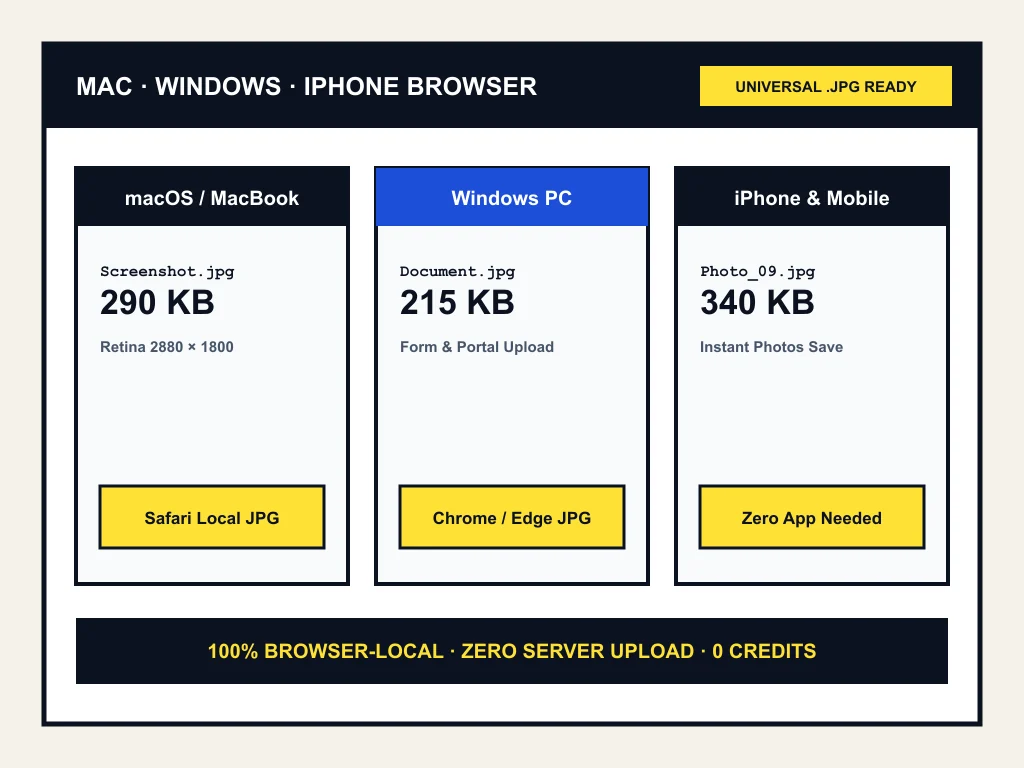
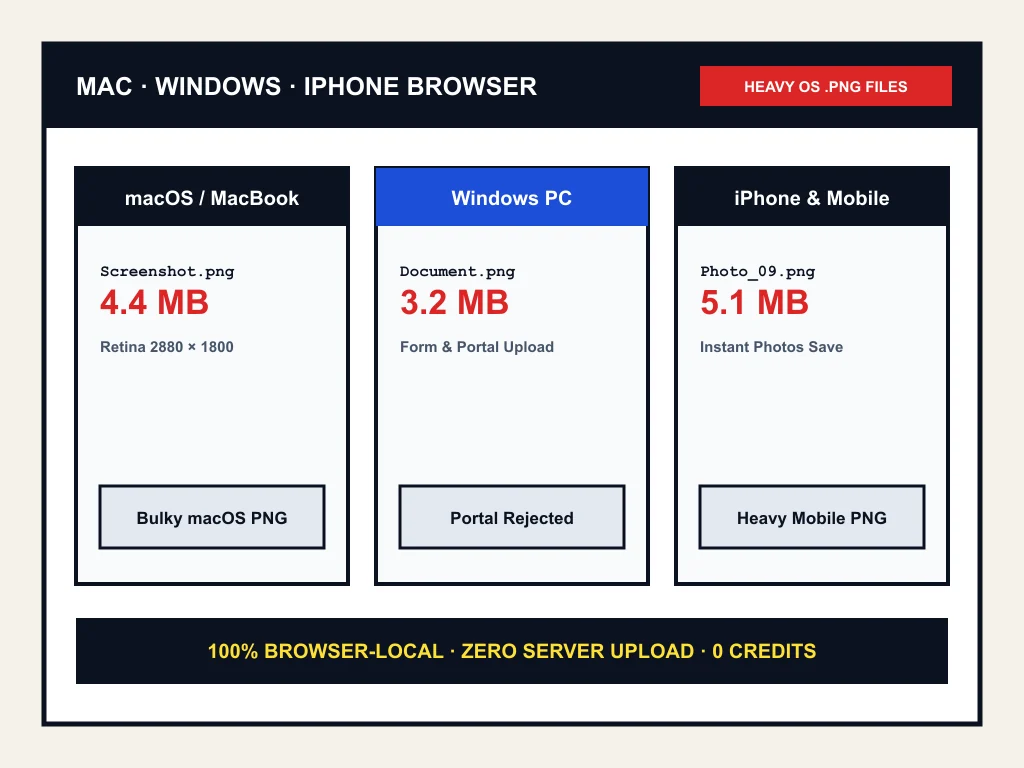
Fast cross-device exports without installing desktop freeware
Whether you are clearing heavy Retina captures on a MacBook, uploading IDs on Windows, or sharing images on iPhone, your browser handles the entire lossless-to-JPEG format switch locally.
- Works smoothly in Safari, Chrome, Edge, and Firefox on any OS
- Zero app downloads, zero account prompts, and zero watermarks
- Files never leave your device — safe for receipts, IDs, and client drafts
Why use our free PNG to JPG converter?
Custom Quality & Background Fill
Fine-tune JPEG quality from 60% to 100% and choose a clean white, light gray, black, or custom hex backdrop for transparent PNGs — re-encoding live with one click.
100% Private Browser Processing
Every file converts inside your local browser canvas with zero server uploads. Personal scans, invoices, and unreleased mockups never leave your computer or phone.
Bulk Queue & Zero Credits
Run single or batch exports of up to 30 images at once with instant size-reduction stats, zero watermark, no sign-in, and zero credit charges.
How it works
Drop or paste your PNG files
Drag one or up to 30 .png images into the box above, browse from Mac, Windows, or iPhone, or press Ctrl+V to paste directly from your clipboard.
Adjust quality and background color
Keep the balanced 90%–92% quality default and crisp white transparency fill, or slide to your preferred compression level and watch every file size update locally.
Download individual or all JPGs
Review exact pixel dimensions and percentage size savings for each photo, save single JPEGs, or click Download All for your whole batch.
Best inputs and limitations
Works best when you need to change PNG to JPG to shrink heavy macOS or Windows screenshots, meet strict .jpg-only upload portals, flatten transparent product stickers onto clean white backgrounds, or bulk export lighter web photography.
Keep in mind: JPEG is a lossy format and cannot store transparency, so switching formats permanently flattens transparent backgrounds onto your selected fill color. Keep your original .png master if you still need editable transparency, and use AI Photo Enhancer or AI Image Upscaler if an image is already blurry or small.
How to Convert PNG to JPG Without Losing Crisp Detail
Learning how to convert PNG to JPG cleanly comes down to choosing the right quality setting and handling transparency intentionally. PNG stores every pixel with lossless compression, which makes files crisp yet often 5× to 10× heavier than photographic JPEG equivalents.
When you drop images into our online PNG to JPG converter, your browser paints each file onto a full-resolution HTML5 canvas over your chosen background fill color and encodes a clean standard .jpg file using your exact quality setting. Pixel dimensions stay 100% identical — a 2880 × 1800 Retina screenshot remains 2880 × 1800 px — while file weight drops dramatically.
- Balanced 90%–92% default: Delivers visually crisp photos and UI text while trimming 70%–85% of file weight.
- Web-optimized 80% preset: Ideal for blog posts, email newsletters, and fast-loading storefront galleries.
- Maximum 96%–100% setting: Best when a form demands the .jpg extension yet you want minimal compression loss.
Handling Transparent Backgrounds When Turning PNG into JPEG
One major pitfall when people turn PNG into JPEG is ending up with an unexpected black box behind a logo, signature, or cutout. That happens because the JPEG specification has no alpha channel — every pixel must be opaque — and uninitialized canvas memory defaults to solid black.
Our converter solves this automatically by filling the canvas with pure white (#FFFFFF) before drawing your image, while letting you switch to soft light gray, dark charcoal, or any custom hex color in one click. Every queued image re-encodes immediately so you can preview exact results before downloading.
If you actually need to keep a transparent background for stickers, overlays, or print cutouts, stay in PNG format — or use our AI Background Remover to isolate subjects on a fresh transparent alpha layer.
How to Convert PNG to JPG on Mac, Windows, and iPhone
Many people search how to convert PNG to JPG on Mac, Windows, or iPhone because built-in operating system screenshots save as bulky .png files by default, while government forms, marketplaces, and email tools frequently demand lightweight .jpg uploads.
- On Mac & MacBook: Instead of exporting files one at a time in macOS Preview, open this page in Safari or Chrome, drag an entire folder of Retina screenshots straight onto the dropzone, and export all of them as compact JPEGs in seconds.
- On Windows: Skip opening MS Paint or installing ad-heavy converter freeware — drop up to 30 PNGs directly from File Explorer and download the whole batch locally.
- On iPhone & Android: Tap Choose PNG Files from your Photos library or Files app to save standard .jpg copies directly to your phone without uploading private photos to remote servers.
Batch Convert PNG to JPG for Faster Websites and Catalogs
Running a bulk image converter locally in your browser removes the slow upload-and-wait bottleneck of traditional cloud file converters. Because decoding and JPEG encoding run directly on your device's CPU, even large batches of high-resolution product images finish in seconds.
Each row in the queue shows the exact pixel dimensions, original PNG weight, resulting JPEG weight, and real-time savings percentage (for example, shrinking a 4.2 MB export down to 320 KB). Need cleaner detail or bigger dimensions before compressing for your store? Pair format conversion with dedicated AI restoration:
- Sharpen soft or compressed photos first with AI Photo Enhancer.
- Scale small thumbnails up to 4K or print resolution with AI Image Upscaler.
100% Free Local Converter Plus Optional AI Upgrades
Using this free PNG to JPG converter costs zero credits, requires zero sign-up, and adds zero watermarks — whether you convert a single Mac screenshot or batch process 30 catalog photos at once. Because encoding happens locally in your browser, there are no server queues and no retention timers.
Only if you choose optional cloud GPU tools afterward — such as AI background removal, JPEG artifact cleanup, or 4K–16× super-resolution upscaling — do SuperResolution credits apply. a 500-credit pack ($6.99 USD during our Holiday Sale, regularly $9.99, through December 30) or Pro (from $9.95/mo billed annually at $119.40 first year, or $19.99/mo monthly)
PNG vs. JPG vs. AI Workflows: Which Format Fits Your Goal?
Decide whether lightweight JPEG compression, lossless PNG preservation, or AI restoration best matches your next step.
| Goal | Recommended Tool | What Changes | Best Next Step |
|---|---|---|---|
| Shrink heavy .png screenshots & photos | PNG to JPG (this page) | Encodes full-res pixels into compact .jpg locally (60%–100% quality, 0 credits) | Upload to forms, email attachments, blogs, or fast web pages |
| Flatten transparent PNG onto white | PNG to JPG fill picker | Fills alpha transparency with clean white or custom hex before JPEG encoding | Publish clean white-background marketplace listings |
| Batch process multiple PNGs on Mac/Win | PNG to JPG batch queue | Converts up to 30 local files simultaneously with 1-click Download All | Deliver compact photo folders without desktop freeware |
| Switch JPEG back to lossless archive | JPG to PNG Converter | Re-encodes full-res pixels into lossless PNG locally in browser (0 credits) | Protect repeated Photoshop or Figma edits from generation loss |
| Enlarge small PNG/JPG to 4K or print | AI Image Upscaler | Multiplies pixel dimensions 2×–16× with AI detail reconstruction | Print crisp posters, banners, and high-DPI hero graphics |
Frequently Asked Questions
Is this PNG to JPG converter really free with no file limits?
Yes. Converting your photos runs 100% locally in your browser with zero credits, no account required, no watermark, and no daily cap. Paid plans only apply if you choose optional cloud AI tools like background removal or 4K upscaling afterward. Yes. Every new account receives 100 free credits on signup (no credit card required) to generate real watermarked previews on your own images. To download clean, watermark-free full-resolution PNGs, pick up a one-time 500-credit pack for $6.99 USD during our Holiday Sale (30% off $9.99 through December 30, never expires) or upgrade to Pro from $9.95/mo billed annually ($119.40 first year, 40% off $199/yr) or $19.99/mo monthly.
What happens to a transparent background when I convert PNG to JPG?
Because JPEG cannot store transparency, transparent areas must be filled with a solid color. By default our converter fills transparent pixels with crisp white (#FFFFFF) instead of ugly black, and you can switch to light gray, black, or any custom hex color before downloading.
How much smaller will my JPG file be compared to PNG?
Photographic images and desktop screenshots typically shrink by 70% to 92% at the balanced 90% quality setting. Each row in the converter displays your exact original PNG size, new JPEG size, and percentage saved in real time.
Can I batch convert multiple PNG files to JPG at once?
Yes. Drop or select up to 30 .png images at once, tweak your JPEG quality or background fill color across the entire queue simultaneously, and click Download All to save every converted .jpg file.
Are my PNG images uploaded to your servers?
No. Everything runs strictly inside your browser's local memory using the HTML5 Canvas API. Your screenshots, tax scans, IDs, and client designs never leave your Mac, Windows PC, or iPhone.
Is there any difference between .jpg and .jpeg?
No. Both .jpg and .jpeg refer to the exact same JPEG image standard; .jpg simply originated from older three-character file extension rules. Every modern website, phone, and form accepts .jpg files universally.
How do I convert PNG to JPG on Mac, Windows, or iPhone without apps?
Simply open this page in Safari, Chrome, Edge, or Firefox on your device, pick or drop your PNG files, and tap Download JPG. No macOS Preview exports, Windows Paint workarounds, or third-party app installs are needed.
Which JPEG quality percentage should I pick?
Start with 90%–92% (Balanced) for crisp photos and legible UI screenshots at a fraction of the PNG size. Drop to 80% for maximum web speed and tiny email attachments, or raise to 96%–100% when you need near-lossless archival quality in .jpg format.